Successful Blog

  • Home
  • Community
  • About
  • Author Guidelines
  • Liz’s Book
  • Stay Tuned

How to Code Accessible Links–Part 2

January 17, 2006 by Liz

How to Code an Accessible Image
by Cas of Brightmeadow

Basic code

Just to remind you what the basic image code looks like:
<img src=”http://www.foo.com/image.jpg” />

The ALT description–how it works

The ALT description works in much the same way that the TITLE attribute works for a link. It is inserted after the URL but before the tag is closed and contains descriptive text. Instead of previewing the image when you mouse over though, the ALT attribute is what is read out when someone is using a screen reader. It should describe the content of the image. It is also the ALT text that is displayed by your browser when, for whatever reason, an image fails to load.

Accessible code

<img src=”http://foo.com/image.jpg” alt=”descriptive text” />

When to use

Use descriptive text in the ALT attribute when the image imparts information to the viewer, for example if it contains text like many header images and buttons do.

When to use a null value

There are certain instances when the image being used imparts no information to the reader – for example a spacer.gif (though the practice of using spacer images is now frowned upon). In these instances, consider using the null attribute to make the screen readers ignore the image. To use the null value, simple use alt="" without a space between the quotation marks. Putting a space, or just ignoring the ALT description will result in non-visual readers being told that there is an image, but not being given a description. Highly frustrating!

A few notes

  • The description should not contain the word ‘image’. An image coded as
    <img src=”penguin.jpg” alt=”an image of penguins plotting” />
    will be read out as “IMAGE, an image of penguins plotting” by a screen reader.
    Repetitive. Rather, the text should be something like “penguins plotting another evil plan”.
  • Think carefully about when to use the null attribute. Users who can’t see your decorative or blank images don’t need to hear a description of them.

Meanwhile Cas and I are off to plot a plan of our own, until tomorrow.
–ME “Liz” Strauss

The Complete Series
How to Code Accessible Links
This one: How to Code Accessible Links–Part 1
This one: How to Code Accessible Links–Part 2
How to Code Accessible Links–Part 3

Filed Under: Links, SEO, Successful Blog, Tech/Stats Tagged With: accessibility, bc, blog-promotion, colding-links, personal-branding

How to Code Accessible Links–Part 1

January 16, 2006 by Liz

Cas read my article on how to code hyperlinks and in the comments shared some discussion about the importance of accessible links–a topic which had come up earlier in Successful-Blog conversations. In my usual fashion I invited Cas to write on the subject and she took up the challenge. Her response was to do a series of articles on accessible hyperlinks. I, for one, am so glad she did. She really does know so much more about such things than I do. In fact, she knows so much more that I asked her to start by just clarifying for me what is it that makes an Accessible link. –ME “Liz” Strauss

How to Code Accessible Links–Part One: The Basics
by Cas of Brightmeadow

Liz has already written a great article on how to code hyperlinks. I’d like to take this one further and show you how to code accessible hyperlinks. If you are happy with how to manually code hyperlinks, then we can continue. If you aren’t, or feel like you need a bit of a refresher, I do recommend you read the article. We’ll wait.

Ok, ready?

What is an accessible link?

Web accessibility is about making your website accessible to all Internet users (both disabled and non-disabled), regardless of what browsing technology they’re using. An “accessible link” therefore, is simply a link that imparts as much information to as many users as possible. It enables the reader to preview the link, making an informed decision about whether to follow it or not, and helps to differentiate between links that may share link text but refer to different targets

So why should I worry about accessibility?

Not everyone views the Web in the same way that you do – accessibility is not just for disabled users. It is for the many potential readers who might be browsing your site on a dial-up connection, using a screen-reader, using a mobile device with a small screen, or using a text-only browser such as Lynx. By making your website accessible you are opening it up to a much wider potential audience. Making something accessible for humans also has the side effect of making it more accessible for search engines. If you make a living through your site, happy readers, and happy search engines just make good sense.

Not convinced?

Not convinced that this is necessary? Turn off the images in your browser, and then the stylesheet, and see if you can still successfully navigate your website and get meaning from your content. What you see now is roughly how someone with visual impairment, or a text-only browser, views your website.

  • Internet Explorer: Tools > Internet Options > Advanced > Multimedia > Show pictures (uncheck)
  • Firefox: Tools > Options > Web features > Load images (uncheck)
  • Opera: Tools > Preferences > Multimedia > Show no images
  • Stylesheets: View > Page Styles > No style

So how do I go about making my links accessible?

It really isn’t that hard. If you’re already manually coding your links, making them accessible is just a case of putting in a few extra bits of text.
This how-to is in three parts, and will walk you through what you need to know:

  1. How to code an accessible hyperlink
  2. How to code an accessible image
  3. How to code an accessible embedded hyperlink

Throughout this article I will be using http://www.foo.com as an demonstration. Simply replace this, and any other exemplar text with the particulars for what you are doing.

How to code an accessible text hyperlink

Basic code

Just to remind you what the basic hyperlink code looks like:
<a href=”http://www.foo.com”>Descriptive Link Anchor Text </a>

The TITLE description – how it works

It is the TITLE attribute that makes a link accessible. It is inserted after the URL but before the first closing angled bracket and contains descriptive text, enabling the reader to ‘preview’ the link. This in turn allows users to more accurately guess where the link will take them, and make a more informed decision about whether or not they should follow it. Roll your mouse over this example link and you will see what I mean. The text that appears by your mouse cursor is the preview.
Example link

Accessible code

<a href=”http://www.foo.com” title=”Descriptive text” >
Link anchor text will render like this: Link anchor text

When to use

Every hyperlink should have a TITLE attribute.

A few notes

The descriptive title can be any text you want, though to make it as accessible as possible, follow these simple rules:

  • It should say something about the destination of the link.
  • It needs to be between 3 and 80 characters long. A single sentence is normally sufficient.

–Cas and Liz

The Complete Series
How to Code Accessible Links
This one: How to Code Accessible Links–Part 1
How to Code Accessible Links–Part 2
How to Code Accessible Links–Part 3

Filed Under: Audience, Links, SEO, Successful Blog, Tech/Stats Tagged With: accessibility, bc, blog-promotion, colding-links, personal-branding

Great Find: Laptop Life Extension Tips

January 9, 2006 by Liz

Image hosted by Photobucket.com

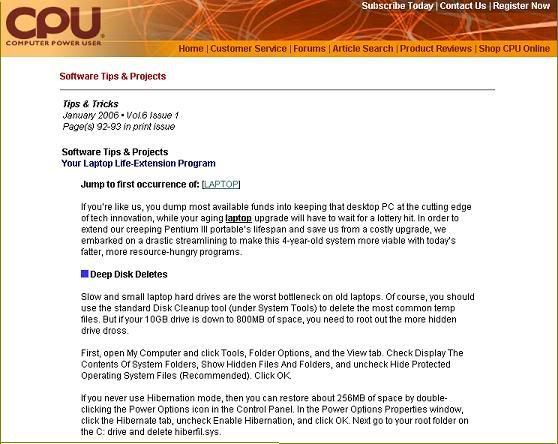
Great Find: Software Tips & Projects: Your Laptop Life-Extension Program by Computer Power User Magazine, January 2006 issue
Type of Article: Magazine Feature Article on Win XP
URL: www.computerpoweruser.com (then do article search)
Target Audience: Any XP Laptop user

Content: If you’re like us, you dump most available funds into keeping that desktop PC at the cutting edge of tech innovation, while your aging laptop upgrade will have to wait for a lottery hit. . . . this article begins. Well my laptop is my desktop, and I’m still waiting for that lottery hit.

What you’ll find here is how to circumvent some of the redundancies built into XP to allow your laptop to run faster and to keep up with the resource-hungry programs that seem to get bigger by the minute. Included in the article are tips on how to

  • Do deep disk deletes
  • Uninstall the uninstallers that you’ll never need.
  • Stop Windows from fetching functions that you don’t want to use.
  • Delete dlls that are no longer associated with any program files.
  • Shut off unnecessary background Windows services to get faster performance.

If you’re a road warrior or if you just earn your miles at a desk machine, more resources can make the day go by faster and your life seem like you’ve just gotten your windshield cleaned.

I’m not a computer power user or a computer power magazine reader, but I have to say when I read this article I was ready to try at least one or two of these to make my life easier.
Take a peek and see whether you might not agree.

After all, you aren’t really going to uninstall the service pack that you intalled and have been using for two years now. Are you?

–ME “Liz” Strauss

Filed Under: Successful Blog, Tech/Stats Tagged With: bc

Google Site Maps–Looking for Lancelot or Guinevere

January 1, 2006 by Liz

Imagine you could know every thing that Google knows about you and your blog. Okay so you can’t. But you can know alot and over this past year Google’s packaged more and more of that information in usable chunks.

New Years Resolution 1 Check Out the Depth and Breadth of Google Site Maps
If you’ve not yet checked out Google Site Maps make an appointment with yourself to spend an hour doing so. This image of my site’s overview page will show what you can without downloading anything. I’ve linked it to the Google Site Maps login page so that you can dig right in.

Googlesitemaps Overview

Once you’re there Google asks you to make a verification file and to place it on your server at the root location of your site.

This leads me to Resolution 2, which applies only to the more experienced of our community.

Resolution 2: Be a Hero. Teach someone with a subdomain. If you know how to do this for a subdomain–such as Blogger–that has

  • no access to the server
  • no separate file for anything, but a flat open template instead,

would you take a subdomain blogger like me or another under your wing and show us how we might get our hands on the information that you can only get after verification?

You might think that since Google owns Blogger, they would offer some sign, some light, signal as to how to do this. But alas and alack, as in many major corporations, such communication is vapor on the wind. We must scratch and scrape. We are left bereft to find our way through the dark relying on the kindness of friends.

Translation: I’m dying to know what else I might find behind that curtain. Especially since the tabs the curtain covers are called stats and errors.

So there’s the quest. Is there a modern-day Lancelot or Guinevere would take up this gauntlet? Is there someone who tell me what Google should have told me? . . . Please.

–Me “Liz” Strauss

Filed Under: Community, SEO, Successful Blog, Tech/Stats Tagged With: bc

Blogger/ Firefox–Editing Trap

December 30, 2005 by Liz

If you’re working on a Blogger blog and using Firefox, recently when they hid the time options choice on the posting box, they also hid an editing trap.

Note: This seems to be true only in Firefox.

Here’s what happens: When you go back in to edit, unless you check the “keep current time” box, the time resets itself. That means that the time on the post becomes time of the edit, rather than remaining the time the post was originally published.

A post written in May, but fixed in July would move two months through your blog!

Read this explanation of how Blogger posts are an editing trap by Improbulus at a Consuming Experience. The post will lead you to the software fixes that you need.

Whew! What a mess that could be. Just when you thought your blog was doing fine. . . Thank you again. Improbulus.

–ME “Liz” Strauss

Filed Under: Blog Basics, Successful Blog, Tech/Stats Tagged With: bc

Blogging Life Technical Question

December 27, 2005 by Liz

Well my 2005 Karma-Skew Zeitgeist is still knocking me.

Can anyone tell me why all of a sudden my printer isn’t printing what it sees on a web page, but instead printing what’s behind it?

It is making me crazy. crazier, which, as I’m sure you know, is not a good thing.

I can pinpoint no action I have taken that would cause this change. I have already deleted my cookies and cleared my cache. I’m ready to reload my brower. Yes, it’s IE–no lectures, please.

–ME “Liz” Strauss

Filed Under: Successful Blog, Tech/Stats Tagged With: bc

  • « Previous Page
  • 1
  • …
  • 15
  • 16
  • 17
  • 18
  • 19
  • Next Page »

Recently Updated Posts

Is Your Brand Fan Friendly?

How to Improve Your Freelancing Productivity

How to Leverage Live Streaming for Content Marketing

10 Key Customer Experience Design Factors to Consider

How to Use a Lead Generation Item on Facebook

How to Become a Better Storyteller


From Liz Strauss & GeniusShared Press

  • What IS an SOB?!
  • SOB A-Z Directory
  • Letting Liz Be

© 2025 ME Strauss & GeniusShared