Successful Blog

  • Home
  • Community
  • About
  • Author Guidelines
  • Liz’s Book
  • Stay Tuned

10 Time Management Apps to Help Enable the Perfect Work/Life Balance

May 17, 2016 by Rosemary

By Outreach Mama

It’s undeniable that new and innovative technology has created immeasurable benefits for all of us. The high-tech lifestyle that we currently lead allows us to quickly connect with our peers, perform important tasks throughout the day, leverage resources and improve our productivity much speedier and simpler than we’ve ever imagined possible.

Are you currently using time management applications to help improve productivity with the completion of day-to-day tasks? Which apps are you using? And how many do you find useful for time optimization?

There are currently hundreds of apps and other tools to help with time management. If you choose to miss out on the advantage that they provide, you are making a big mistake and costing yourself hundreds of hours a year that could have otherwise been put to better use if time management productivity was taken more seriously.

With that said, we will share 10 time management apps that will make a positive impact on your time and schedule if you’d only begin using them.

Our Top 10 Time Management Applications

Here are our favorites in no particular order:

● Rescue Time – we often wonder and doubt whether or not we are using our time to our advantage. Rescue Time runs as a background application on your computer and/or mobile device. It tracks time spent on applications, websites, and shows you (through weekly reports) where and how you are spending your time online. You’ll find out your biggest time wasters and learn how to manage your Internet usage in a more productive way.

● Dropbox – this free and simple to use application allows you to store content in the cloud. This cloud server helps you quickly move content from one device to another. You can gain access to and share your most important files no matter where you happen to be while on the go.

● Clockspot – this app is a favorite of business owners in many industries. It is the perfect alternative to cumbersome timesheets. It makes it simple to track the amount of time spent on personal and business projects. Clockspot is the ideal tool to help manage and analyze projects and tasks quite effectively.

● Launchy – this easy, tiny tool will allow you to use a few simple keystrokes to launch project files, bookmarks, folders and documents. It makes it very simple to access programs without fumbling through your start menu.

● Universal Password Manager – if you happen to forget your passwords, and have Post-it notes piled up on your desk completely disorganized and out of sorts; this is the best way to keep your passwords stored and safe without compromising security.

● MyLifeOrganized – if you find it difficult to manage to-do lists and tasks, this app will help you get your life organized and back on track.

● Remember the Milk – this tool helps keep you organized and is compatible with computers, mobile devices, Outlook, Gmail and more.

● Evernote – keep track of articles, notes, images, voice messages and more with this free productivity tool.

● Focus Booster – based on Pomodoro technique principles, this application is perfect for those who continuously procrastinate and experience task management overwhelm. It helps improve your focus and relieve time related anxiety.

● Focus at Will – this application uses music and neuroscience to help enhance productivity. It’s perfect for those trying to stay focused while reading, working or studying.

Begin using these time management apps and get your life back on track without any further delay.


Featured Image Source: kaboompics.com
 

Filed Under: Tools

Top 5 Content Recommendation Tools for Social Media Managers

August 8, 2015 by Guest Author

By Jessica Davis

With the continuous need to come up with new content to keep your social media audience engaged, curating great content can seem like a challenging task.

As they say, content is king, and its importance in the world of social media marketing cannot be understated. In order to do a good job of sharing interesting content with your audience and keeping them hooked to your page, you need to know and understand their preferences and post content that interests them.

Here are five content recommendation tools that can help you curate unique content for your readers.

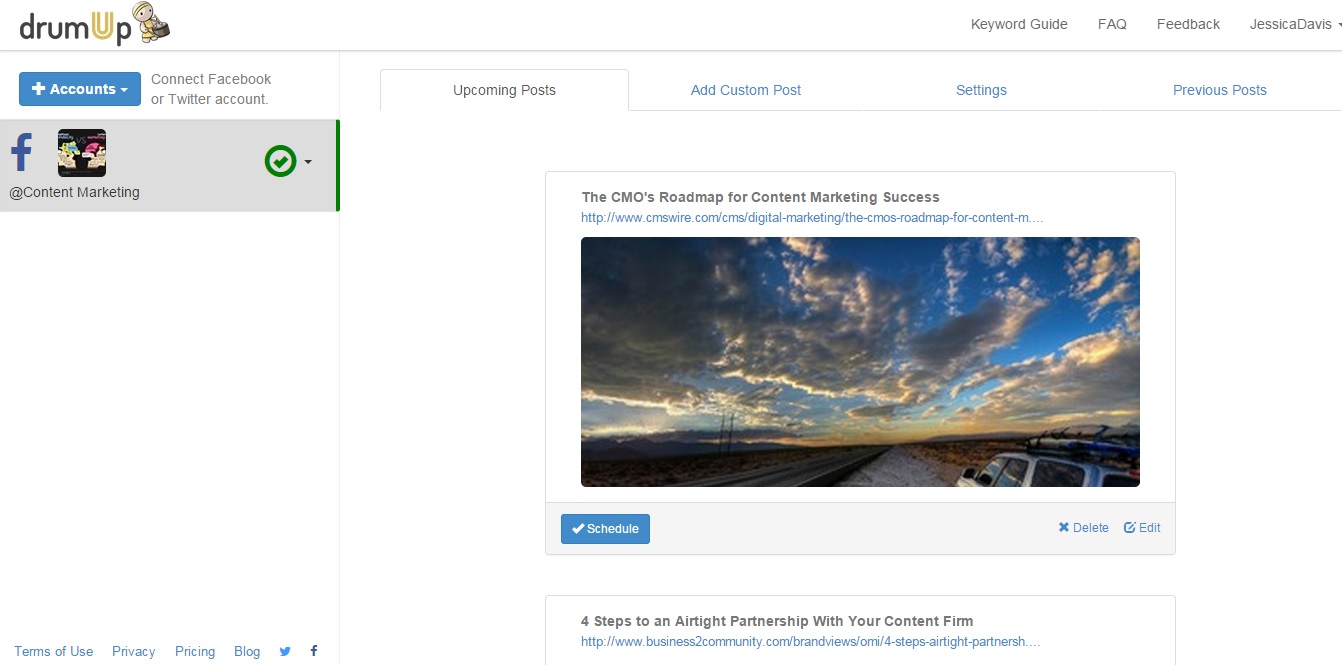
DrumUp

DrumUp provides you with free content recommendations through its tool and allows you to schedule your posts too, freeing you from the worries of what you should post and when you should post on your social accounts. All you have to do is insert a few keywords into the tool and DrumUp will process them to give you the most fresh and relevant content suggestions in your stream. It also features an added control of negative keywords to refine your results even further.

DrumUp screenshot

Flipboard

This app brings to you all the recent content published in newspapers and magazines from all over the world. Flipboard offers you more than 34,000 topics to choose from, and you can access all this content through a smartly designed graphic interface that offers easy navigation and even allows you to store articles for later reading.

Flipboard screenshot

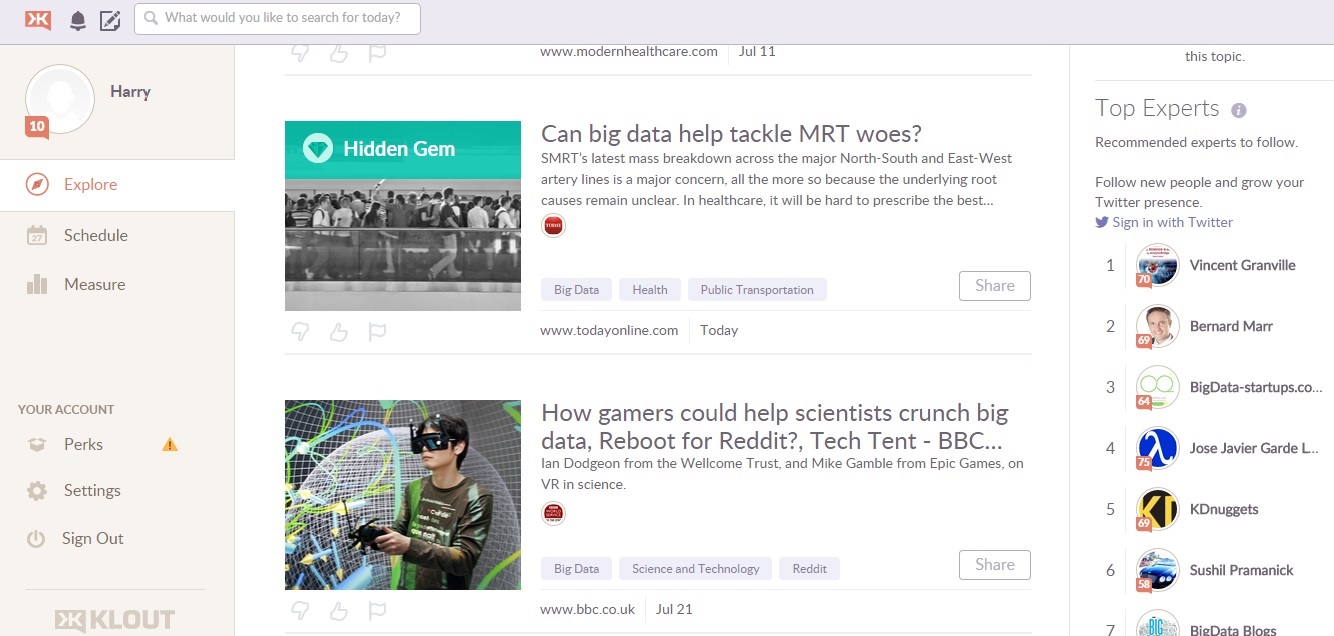
Klout

Klout works as a content recommendation search engine. By keying in the topics and keywords relevant to your business, you can unlock Klout’s suggestions in the form of articles and blog posts that will be useful in your social media marketing efforts. You can review and choose the ones that you think will generate most engagement and share them on your social accounts. The app, with its Klout Score feature, lets you measure the success of your social media posts and presents the data in the form of a graph for easy understanding.

Klout screenshot

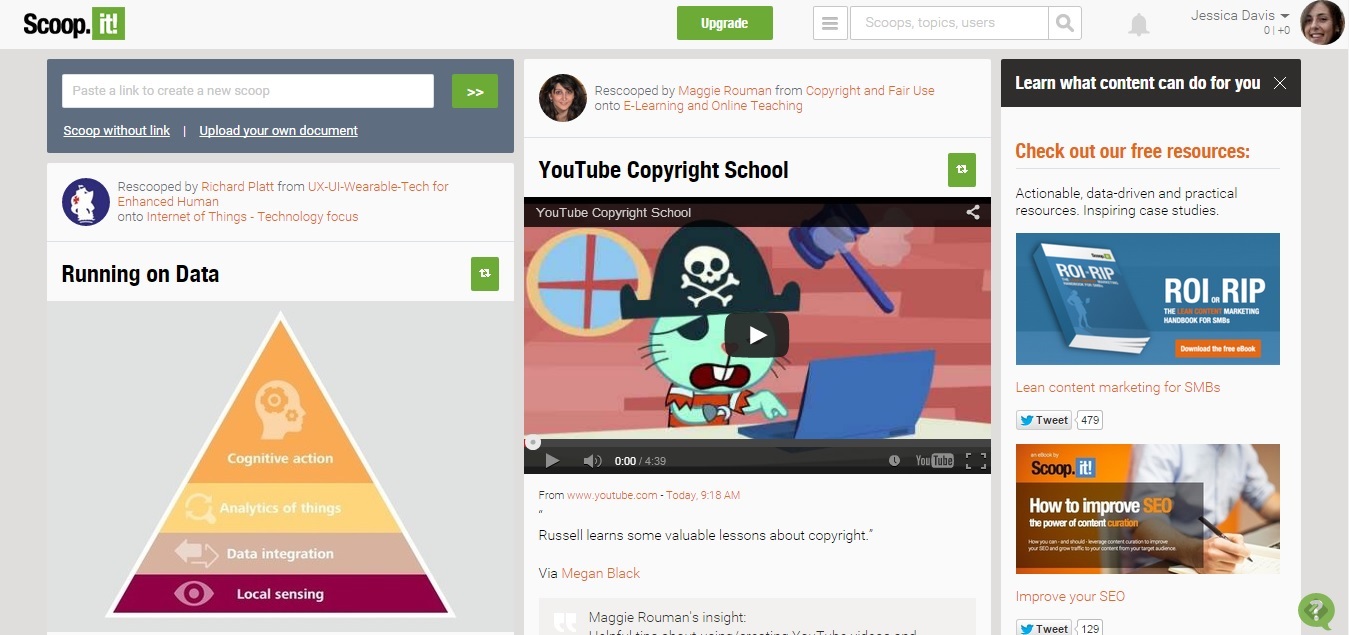
Scoop.it

Scoop.it recommends articles for you to share in your social media circles based on the keyword search you run. Once you find the articles of your choice you can add a customized message to the article before posting it online for your audience. The good thing about scoop.it is it allows you to post on multiple platforms at one go.

Scoop.it screenshot

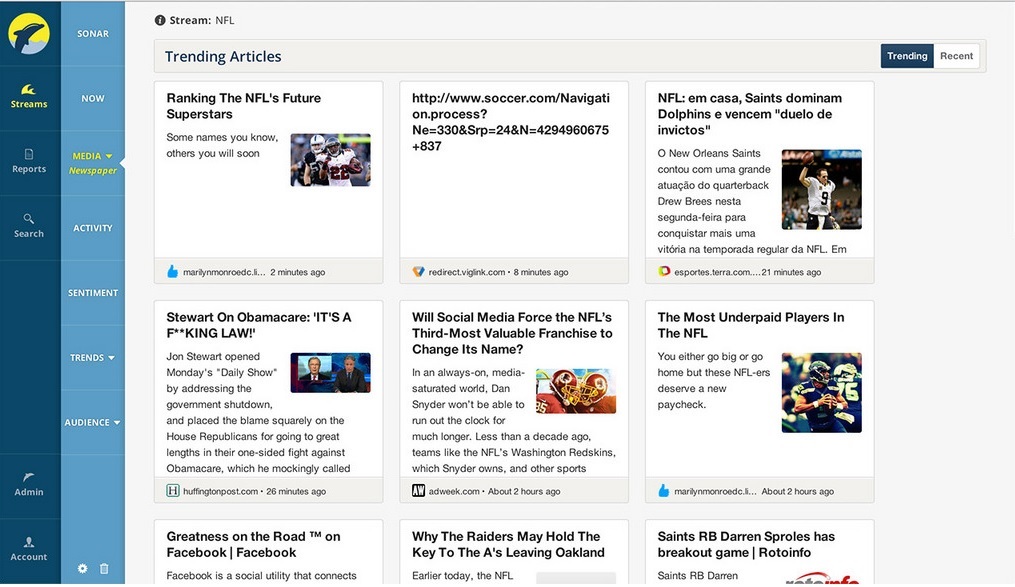
Bottlenose

This social media management app brings to you real time news and data. Bottlenose helps you identify new trends and directs you to opportunities that you can explore to create content and share it on your social accounts. It keeps you updated with trending stories allowing you to ride the social media wave with the most relevant and fresh industry stories.

Bottlenose screenshot

With these five topnotch content recommendation tools you will never face a dearth of content options as they will bring you the best and most effective content suggestions for all your social media marketing efforts.

Author’s Bio: Jessica Davis follows the social media and content marketing space closely, and writes about it extensively. She represents Godot Media – a leading SEO writing services firm.

Filed Under: Tools Tagged With: recommendations, tools

Make It Your Business to Know Google Chrome Extensions

February 4, 2015 by Thomas

software-development-diagram-100101781You might be surprised to find out how some of the newest Google Chrome extensions can help your business run more efficiently or improve productivity to increase the bottom line.

You must select the ones that have the best benefits for your company and know how to use them properly.

With that in mind, check out:

Smartsheet

This app allows you to manage projects and work with team members.

It looks similar to a spreadsheet, which makes it easier for anyone to learn. You can set deadlines and even choose the priority level of each project. You can even create assignments within assignments.

One of the big benefits with this extension is that it allows you to attach documents, videos and other files so that everyone can have access.

You can also check your calendar and timeline to see how each project fits into your overall schedule and what is coming due when.

Business Hangouts

For those familiar with Hangouts will appreciate this app.

It includes special features just for businesses, such as the ability to manage who is attending your meetings and send out invites and reminders.

Another benefit that will be important to many businesses is the fact that you can include people who are not part of Google Plus. When you install it on Chrome, it only takes a click to set up a meeting.

Evernote

Listed as one of the top extensions in the article, 7 Killer Google Chrome Extensions for Your Business, Evernote is well-known but not everyone is taking advantage of its features.

For those who are always on the go and accessing information on multiple devices, Evernote lets you keep all of your notes in one place where you can retrieve them from anywhere.

It has been compared to the paper Post-It notes, but it actually does a lot more. You can even search for your notes and place everything together for fast access.

Wave Accounting

You can manage your own finances with this app.

It runs right in your browser and is ideal for small businesses. You have the option of entering expenses manually or allowing the process to work automatically. It also allows you to create invoices for your customers and even send them straight from your computer. You can even accept credit cards for payment.

Like many other complex and expensive software programs, Wave Accounting allows you to create reports and balance sheets so you can manage the financial aspect of your business.

Each of these apps works with Google Chrome and can provide a significant benefit for your business.

By using one or more of them, you can organize your time, documents and work flow so that you can keep your company on track. By automating as many processes as you can and using quick and easy apps to manage certain aspects of your organization, you can spend more time on other tasks.

These apps also allow you to function like any other business no matter how small your company is.

Photo credit: Image courtesy of Stuart Miles at FreeDigitalPhotos.net

About the Author: Joyce Morse is an author who writes on a variety of topics, including business and technology.

Filed Under: Tools Tagged With: apps, bc, business, employees, Google Chrome, technology

Image App Bonanza: 10 Apps to Spice Up Your Content

July 17, 2014 by Rosemary

According to ContentPlus UK, articles with images get 94% more views than those without. We have become scanners, racing through online posts and sifting for useful information.

Arresting images stop us in our tracks, and pull us into the surrounding text.

Beautiful butterfly image

This is a roundup of apps that I’ve personally road-tested for image manipulation. With the exception of PicMonkey, they are all installed on my iPhone right now.

Go forth and create fun, interesting photos. Just don’t let me catch you putting a “sunset” filter on your plate of salad. Don’t do that.

1. PicMonkey

Web app, Free with premium features
Handy, easy to use app that is great for banners, overlaying text, and resizing images. It covers much of the territory of Photoshop, without the long learning curve and big expense. My 8 year old kids started playing with PicMonkey and were cranking out great stuff immediately. Check out the “collage” feature.

2. KitCamera

Mobile app, Free with 99cent enhanced version
Successor to KitCam, which was acquired by Yahoo, and it’s the Swiss Army knife of mobile image editing apps. Great for live shooting as well as editing after the fact. This one is complex, but includes tons of pro photographer goodies, including filters, high speed shooting, and live editing. Check out the social sharing tools.

3. Vhoto

Mobile app, Free
Have you ever taken a great video, and wanted to pull a still image out for a thumbnail? Here’s your app. Vhoto will automatically find and suggest the best quality still images from a video clip. Use old videos or shoot a new one. Check out the Vhoto user community.

4. Flickr

Web and mobile app, Free with premium
Yes, I know you thought Flickr was gone. It’s not gone, but it’s been revamped, and looks better than ever. The mobile app is very easy to use, and will automatically sync up your photos if you like. Includes filters, pretty strong editing tools, and sharing. Did you know you can also upload videos?

5. Overgram

Mobile only, free
This app does one thing, but does it beautifully. Instantly add cool text to your Instagram photos. Choose font, size, text, and colors, and then save. Check out the beefier, paid Over app for even more editing tools.

6. Bubbsie

Mobile only, free
I had to include one completely fun one. Bubbsie makes it dead easy to create a “meme” image, by placing a thought or conversation bubble overlay on your images. Take a new photo, or overlay on an existing image from your gallery. Check out the picture frame feature.

7. Pixlromatic

Desktop, web, and mobile, free
The cool thing about this one (which I agree is unpronounceable), is that it’s so cross-platform. Use it almost anywhere. Take a photo with your webcam or device, or upload one from your library, and then enhance it with textures, backgrounds, and frames. Easy to use immediately. Check out the fun overlays (bubbles, fireworks).

8. Colorsplash

Web and mobile (special app for iPad), free
An App Store Hall of Famer, Colorsplash is the easiest way to colorize your photos. Turn your image black and white, and then selectively add color back to certain portions. Your colleagues will wonder how you did it. Check out the customizable brush sizes/shapes.

9. PhotoToaster

Mobile, paid app
Touch up, edit, crop, and highlight portions of your images in one app. Combines some of the best bits of ColorSplash and Pixlromatic, in an easy-to-use interface. Great for beginners, with lots of pre-sets. Check out PhotoMotion, from the same company, which lets you turn photos into videos.

10. PopAGraph

Mobile, free with premium upgrades available
Another cool tool for editing your photos, but it has some unique capabilities, including the ability to have separate filters on the background vs the foreground, multi-frames, and captions. Check out the video creator, with music. Share directly to Vine from within the app.

Have fun!

Note: I have zero affiliation with any of the above apps or companies, and no-one solicited these suggestions.

Author’s Bio: Rosemary O’Neill is an insightful spirit who works for social strata — a top ten company to work for on the Internet . Check out the Social Strata blog. You can find Rosemary on Google+ and on Twitter as @rhogroupee

Filed Under: Design, Successful Blog, Tools Tagged With: apps, bc, Design, graphics, tools

10 Tool Tweaks The Cool Kids Use

February 6, 2014 by Rosemary

Cool kid marketing tricks

Remember your cool friend in high school who was the first to figure out how to twist up black rubber bracelets?

The 2014 version, for me, is that marketing colleague who had her new Google+ cover optimized the day after Google changed things up. Some people always seem to be one step ahead with the ninja tricks.

Here are some useful, simple tricks I’ve added to my marketing repertoire:

  1. How to mention your friends by their first name only on Facebook – When you start to type the name of one of your friends, Facebook autocompletes for you. Sometimes this results in awkward sentence structure. To avoid that situation, after it autocompletes, highlight the whole name and hit delete. It will use only the first name.
  2. How to post shareable photos on Twitter – The best way to post photos on Twitter is to use Twitter’s camera icon and upload an image directly. If you share from Instagram to Twitter, it will no longer show the image inline (it shows up as a link).
  3. How to set up your name & title in a Google Hangout – After you’ve joined the Hangout, click the icon on the far left that looks like a lunchbox. That will open the Hangout Toolbox, with the “Lower Third” tool, and you can then complete your Name and Title (and logo if you wish).
  4. How to use the Rapportive Gmail plugin – If you use Gmail’s web interface, you can add the Rapportive browser plugin, which shows you the photo and social feeds for people you email (particularly useful in a sales scenario, since you can often see recent posts and job title). Just go to your browser’s extensions or plugins area and download it for free.
  5. How to add a hashtag column in Hootsuite – Monitor the conversation surrounding a particular hashtag easily. In Hootsuite, click Add Stream, select a profile, and type your hashtag in the Search box. Click Add Stream, and you’re good to go.
  6. How to do a specialty Google search – You don’t have to limit yourself to straight Google searches from the search box. Google’s special search operators page shows how you can narrow it down.
  7. How to add a watermark logo to your YouTube videos – Go to your Video Manager, then Channel Settings. Click InVideo Programming, and then Add Watermark. It will appear in the upper right corner, and will be clickable to subscribe to your channel!
  8. How to annotate your Google Analytics – This is so handy to keep track of important events in your business that may have impacted your traffic. (For example, if you attend a conference or release a new product.) In your analytics, on the main page, you’ll see a tiny triangle in the bottom center of the graph area. Click it to open the annotations, and click “create new annotation” to add your note.
  9. How to make the price tag show up on Pinterest pins – If you sell products in your business, and you’re using Pinterest, you should include the price in your pin descriptions. When you include a dollar sign with the price in your pin description, Pinterest will automatically add the price tag ribbon across the top left corner.
  10. How to delete LinkedIn endorsements you don’t want – Every once in a while, someone will endorse you for something you might not want appearing on your LinkedIn Profile. Click edit profile, and then click the edit icon in the Skills & Endorsements section. Click Manage Endorsements. Uncheck the box next to the endorsement(s) you wish to hide. Don’t forget to click Save, and then Done Editing to retain the changes.
Author’s Bio: Rosemary O’Neill is an insightful spirit who works for social strata — a top ten company to work for on the Internet . Check out the Social Strata blog. You can find Rosemary on Google+ and on Twitter as @rhogroupee

Filed Under: Tools Tagged With: bc, tool tip

10 Great Sites to Easily Add Graphics to Your Content

February 4, 2014 by Rosemary

By James White

Great images and illustrations are crucial to generating viewer interest and engagement with your site. However, unless you’re a professional photographer or designer, finding fresh, interesting graphics to add to your text can be difficult. Luckily, there are sites online that offer great visual content that can be easily added to your site.

Unsplash

Unsplash features free, copyright-free, high-resolution photos. They post 10 new photos every 10 days, so you won’t run out of great images for your content. You can subscribe to the site to get alerts when they post new images, too.

Picjumbo

Like Unsplash, Picjumbo offers free photos to use with your content. There is a new photo posted every day, and you can subscribe to their newsletter to stay on top of new offerings.

NVD3.js

This content site, NVD3.js, may have a strange name, but it has great content. Need a chart for your article or blog? NVD3.js gives you a plethora of pre-made graphs you can customize with your data. You’ll need to know a little about coding to use this site, though.

Lettering.JS

Lettering.JS is a jQuery plug-in that allows you to create your own graphic text, kerning type, logos and more. If you ever wanted to jazz up your content’s text, this is the tool to use.

Scrollorama

Have you ever thought, “Gee, I wonder how blogs make their text zoom and spin when you scroll down the page?” Well, Scrollorama can make your content dreams come true in the form of a jQuery plug-in. This tool will help you make text flip, zoom, fade and practically jump through hoops.

Mapbox

Trying to explain what your town would look like with a few adjustments? Decided to map out your next road trip? Want to illustrate what the Union would look like if France never sold the United States all that land? If so, Mapbox can help. This tool helps you create the map of your dreams and post it with your content.

Flat Icons

Elegant Themes offers 384 flat icons you can download for free. All you have to do is press the download button, and all of the icons are at your fingertips in just seconds.

Ease.ly

Infographics are a huge crowd pleaser. Who doesn’t like ingesting bite-size information with a scoop of interesting illustrations? Ease.ly is one of the top free infographic tools online. You can use it to build your own custom infographics, like this example from CJ Pony Parts, for your site.

Meme Generator

Okay, infographics are hot right now, but nothing can beat the meme when it comes to graphics popularity. You can create your own meme to fit any occasion using the Meme Generator. It allows you to edit already popular memes to fit your needs, or you can make one from scratch. Don’t feel like making or editing a meme? Just use one that someone else created (with attribution, of course).

Openclipart

Clip art may be the old stand-by for graphics, but it’s never gone out of style. Openclipart offers thousands of images that you can download and use. There’s everything from cartoon bunnies to drawings of sticks and everything in-between.

Text got you down? Take any or all of these tools out for a test drive, and you’ll never have boring content again.

Author’s Bio: James works for Inbound Marketing, Inc. and is the founder of InfoBros. In his free time, he enjoys hiking, cooking, and blogging about health, tech and communication. Connect with him on Twitter at @JGtheSavage.

Filed Under: Tools Tagged With: applications, bc, graphics, tools

  • « Previous Page
  • 1
  • 2
  • 3
  • 4
  • …
  • 30
  • Next Page »

Recently Updated Posts

Is Your Brand Fan Friendly?

How to Improve Your Freelancing Productivity

How to Leverage Live Streaming for Content Marketing

10 Key Customer Experience Design Factors to Consider

How to Use a Lead Generation Item on Facebook

How to Become a Better Storyteller


From Liz Strauss & GeniusShared Press

  • What IS an SOB?!
  • SOB A-Z Directory
  • Letting Liz Be

© 2025 ME Strauss & GeniusShared